Quick Import
tags: quick-import, quick import, Import natif de données, import rapide, import, import de données, import de table, import de table rapide
WARNING
Manual Quick import is in .
Business context
In order to reduce retailers' time-to-market, it is important that when they invite new partners, they can import and share their product catalog at a lower cost.
To facilitate the work of importing their products, and save them time, they need to be able to create and import their products in one shot without having to create jobs requiring skills and a significant cost.
To do this, quick import allows suppliers to simply create and import a set of products from the Product-Live interface, being guided step by step through the process.
Import modes
There are two ways to import items into Product-Live with the Quick Import.
Manual quick import
WARNING
Manual quick import is currently in see features status
The user is invited to :
- Select the identifier to import values on
- Type the identifiers to import
⚠️ Each line filled in will be considered as the value of the identifier of the item to be imported. Only spaces at the beginning or end of a line are ignored.
These two pieces of information are required to start importing items.
When the manual quick import is launched, a table-import-items task is launched in CREATE_ONLY mode with the list of identifiers provided.
Excel quick import
New import or reuse import
If no quick import configuration has been saved on the customer account, this step is not displayed to the user.
If a quick import configuration has been saved on the customer account, when opening the quick import, the user has the possibility to make a new import from scratch, or to use a quick import configuration already saved. In order to help the user in his choice, the functioning of the different types of imports is explained.
TIP
Quick import configurations are saved at the Product-Live customer account level, not the user profile level. If two users save quick import configurations to the same customer account, both users can view and use the two quick import saved configuration.
Upload Excel data
The user is asked to copy the Excel data to be imported into the non-editable text field. And the user has a link to access the Quick Import documentation on the Learning Center
The user can define on this page if the pasted data contains a header line. If so, it will be highlighted in the data association screen and will not be imported.
TIP
If the user wants to modify his data, the user must modify it on the Excel file, and paste it again.
If the provided data do not comply with below limits, a warning message is sent to the user and he cannot proceed to the next step:
- The supported data formats are
xlsandxlsx - The field delimiter is a tab
- The text indicator is the double quote
" - Only 100,000 cells can be imported at a time (See the document Limits of use of the platform)
- The size limit on imported data is set at 10MB
Associate data to fields
It is required to select an identifier to continue the Quick Import configuration. That enables the Quick Import to create new items and find existing items to update. Without it, the user cannot continue to the next page.
In case the table allows the import without an identifier, the user must provide the fields required to compute the composed identifier. If the provided data is not enough to build the composed identifier, the items will neither be created or updated.
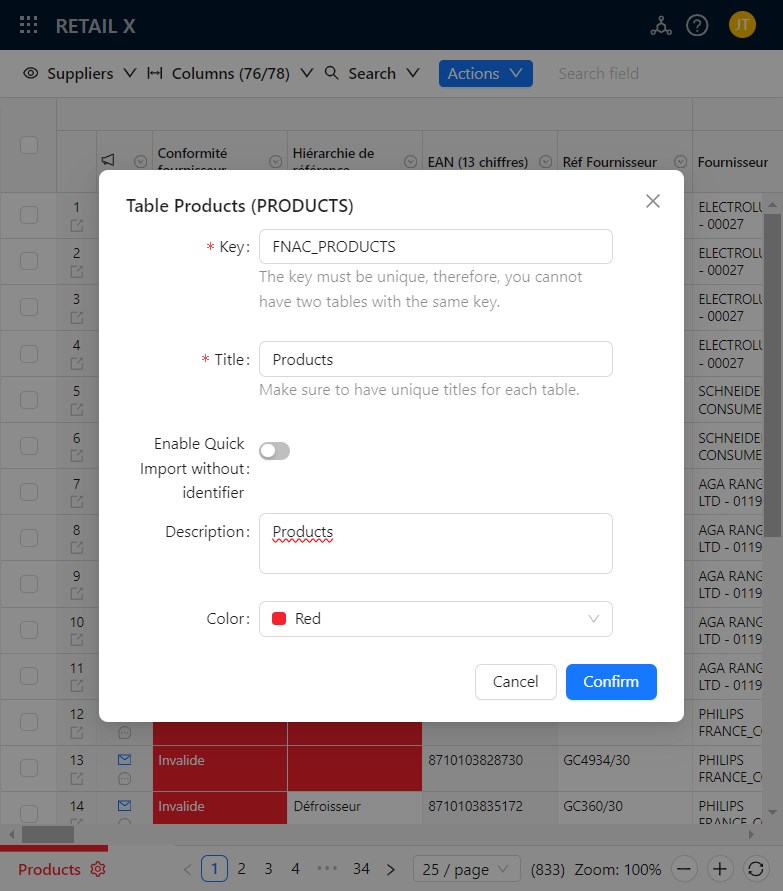
Enable the import without identifier
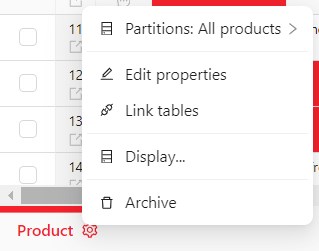
Only an Admin user from the table owner account can enable the import without an identifier on a table. That is configured in the table properties accessible in the table menu in App.
Automatic association
If the first line of the data is set as a header, the Quick Import will try to retrieve an existing field that matches the column header. If no field matches or if multiple fields match the column header, no field is automatically associated.
In case of the matching fails in timeout, a warning alert is displayed. The user can continue the Quick Import configuration but no field is selected for any column.
If a field is associated with a column header, then it is by default displayed as selected in the grid, so that users can see suggested fields and change them if required.
The field matching logic is as below :
- Search for a field (common and specific) having the key equals to the column header
- If only one (active/archived) result is found then
- Associate this field
- Else if several results are found and only one is active then
- Associate this field
- Else (no result is found or if multiple active results are found then)
- Search for a field (common and specific) having the localized title equals to the column header
- Uses user interface localization
- in alphabetical order by title
- not case sensitive
- not sensitive to accented characters
- If only one (active/archived) result is found then
- Associate this field
- Else if several results are found and only one is active then
- Associate this field
- Else (no result is found or if multiple active results are found then)
- Search for a field (common and specific) having the title equals to the column header
- in alphabetical order on the title
- not case sensitive
- not sensitive to accented characters
- If only one result is found then
- Associate this field
- Else if several results are found and only one is active then
- Associate this field
- Search for a field (common and specific) having the title equals to the column header
- Search for a field (common and specific) having the localized title equals to the column header
- If only one (active/archived) result is found then
Data display
A table showing the first 10 rows of user data is displayed. By default:
- If the user has specified that his data contains a header row, it is displayed at the top of the table. Otherwise the columns are named and numbered to help the user know what is the title of his source column.
- Only the first 10 lines are displayed (including header)
An 11th line is displayed with "..." in each column to explain that there are other lines but which are not not displayed. - All columns are displayed
- When the content of a cell is larger than the size of the cell, then the content is truncated to display "
..." at the end of the line- Example: "
When the content of a cell is larger than the cell size" becomes "When the content of a ..."
- Example: "
A warning message is displayed and prevents the user to continue the quick import process in below cases:
- On mono-level tables
- If no identifier is selected
- On multi-levels tables
- If no identifier for the level 1 is selected
- If no identifier is provided for the level of selected fields
- If no parent identifier is provided for the level of selected fields
Select fields
TIP
Here, when talking about fields, we also include identifiers and classifications.
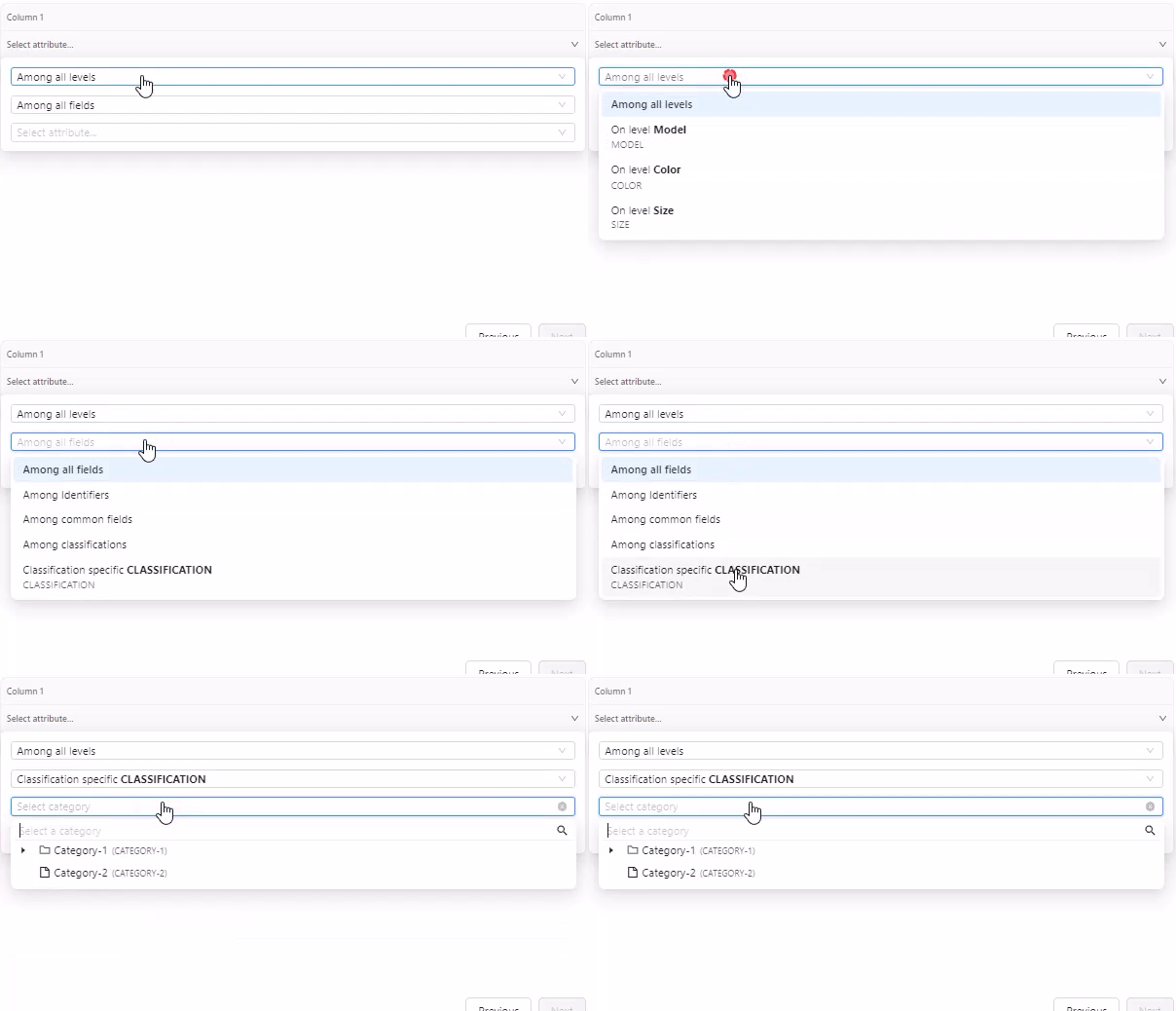
For each column, an identifier, classification or field can be selected to define the target field into which the data will be imported. When the user clicks the search menu he can :
- Choose the level of the field
- Only available on multi-level tables.
- Default: Among all levels
- Choose field type: Among all fields, Identifier, Classification, Common fields, Classification-specific fields
- Default: Among all levels
- Classification and classification-specific fields are only listed if present in the table.
- The classification-specific fields filter is displayed for each Classification table.
- Select the specific category.
- If a classification-specific field** is searched for
- By default, no category is selected
When the user clicks the search area, no results are displayed and a message is displayed asking the user to start typing the title of the field they are looking for to see the matching results. When the user starts typing characters in the search area: a list of identifiers, classifications and fields is displayed.
All identifiers, classifications, common fields and specific accessible on any screen allowed to the user are listed.
The search is done on the title of the field. The results are ordered alphabetically on the field title. Only the first 10 results are listed, with the title and key of each field.
All fields corresponding to the filters are listed and displayed with their local title (if any, otherwise their title) and their key. They are sorted by key. In multi-level tables, the key of the field level is also displayed.
Once a field is selected, the local title (if any, otherwise their title) of this feld is displayed in the selection field.
New import versus reuse import
- During a new import: none of the table columns is associated with a field of the current table.
- During an import with reuse of a configuration: the columns of the table are associated with the fields of the current table as follows:
- Only fields saved in the loaded configuration AND existing in the current table AND visible in the selected view AND displayed in the interface (filter on classifications) are displayed.
- If a field saved in the configuration does not meet these criteria, then no field is displayed by default for this column.
- The saved fields are associated with the columns to be imported in the order in which they were saved.
- It is therefore necessary for the user to import his data with the same columns as when he saved the configuration.
- There is no link between a saved field and the column name. Saved fields are related to column order.
- If there are fewer columns to import than saved fields, then only the first n fields are associated with the n columns to import.
- If there are more columns to import than saved fields, then the additional columns are not associated with any default field.
- Only fields saved in the loaded configuration AND existing in the current table AND visible in the selected view AND displayed in the interface (filter on classifications) are displayed.
Prefixes and suffixes
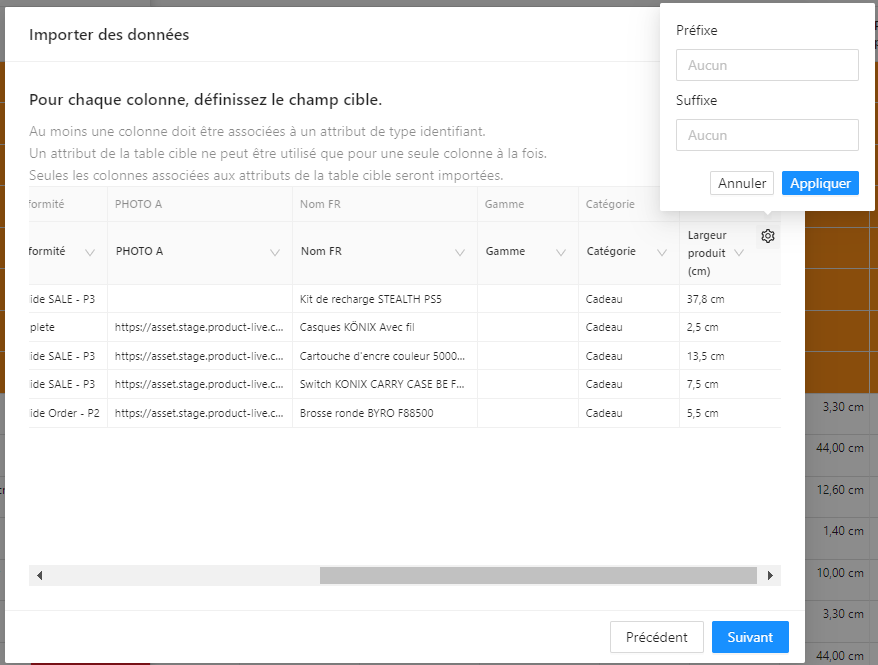
When the user choose a target field type NUMBER, he can specify the prefix and suffix of his data. Thoses prefix and suffix will be removed from the value to import so that it can be a number.
Import configuration
Once the user has defined the target fields of the different columns of his data to be imported, the user can refine the import by modifying some parameters to define its behavior.
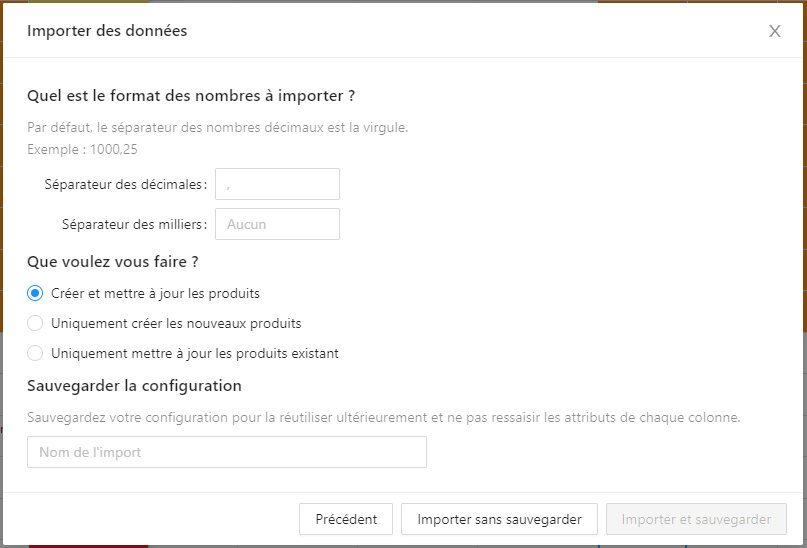
Numerical format
If at least one selected field is a NUMBER, the user has the possibility of specifying the separators used by his data so that numbers can be correctly imported.
By default the decimal separator is "," and the thousands separator is " " (space).
Create and/or update items
The quick import allows to define whether the import creates and/or updates items. More details here
Save import
During the import it is possible to save the configuration. To save the configuration, the user must provide a name. If the user uses an unused configuration name, a new configuration is created. If the user reuses an already existing configuration name, this configuration is overwritten.
Quick import configuration are saved at the customer account level, not at the user profile level. So any configuration saved by a user on a customer account will be available to all other users of this customer account.
The configurations contain the list of fields used in order, the configuration of prefixes and suffixes, the configuration of numeric separators, and whether the import creates and/or updates the items.
Quick import execution
Quick import is based on the table-import-items task.
Depending on the type of the target field, different import rules apply.
Généralités
The import of user data is performed on the current table and partition, and only on the fields displayed on the screen (common and specific fields if a category is filtered).
- Only columns associated with a field are imported.
- If the value to import in an
IDENTIFIERis empty, then the line is not imported. - If a value to be imported in a field other than
IDENTIFIERis empty, then the value is imported. - If the value to be imported into an field does not match the expected input format, then the value is not imported.
- If the value to be imported in an field does not correspond to one of the possible values of this field (ex: classification, option), then the value is not imported.
- Data import can be done on "read-only" fields in the current table, view and partition.
- If the import of a line cannot be done (for technical or functional reasons), the import continues with the following lines.
- Import into specific fields is possible as long as the field is visible on the current table, view and partition, and the category of the specific field is selected in the view.
IDENTIFIER
For IDENTIFIER, spaces at the beginning and end of the character string are not imported.
SINGLE-LINE-TEXT, LONG-TEXT and HTML-TEXT
For SINGLE-LINE-TEXT, LONG-TEXT, HTML-TEXT, spaces at the beginning and end of the character string are not imported.
For HTML-TEXT, the characters "<", ">" and "&" are supported.
IMAGE
For IMAGE the urls must be public.
ATTACHMENT
For ATTACHMENT the urls must be public.
NUMBER without Suffixes
For fields type NUMBER the import uses :
- The user defined separators. More details here
- Prefix and suffix are defined for each target field More details here
Superfluous leading and trailing 0 are ignored.
NUMBER with Suffixes
For fields type NUMBER with Suffixes the import uses :
- the user defined separators. More details here
- Prefix and suffix are defined for each target field More details here
Superfluous leading and trailing 0 are ignored.
To successfully import the NUMBER Suffix, the user must provide either the Suffix key, title or title-local (in the interface language) so that the target Suffix can be identified. The character case is ignored.
For each data to import, the quick import checks which Suffix to use using below logic:
- If the data is a valid number
- The data is imported as field value
- No suffixe is imported (default suffixe is still applied)
- If the data is NOT a valid number
- For each
Suffix.Key- Remove from the data the
Suffix.Key - If the truncated data is a valid number
- The matching
Suffixis marked as a match
- The matching
- Remove from the data the
- For each
Suffix.Title-local- Remove from the data the
Suffix.Title-local - If the truncated data is a valid number
- The matching
Suffixis marked as a match
- The matching
- Remove from the data the
- For each
Suffix.Title- Remove from the data the
Suffix.Title - If the truncated data is a valid number
- The matching
Suffixis marked as a match
- The matching
- Remove from the data the
- If there is no match
- No data is imported
- No
Suffixis imported - A warning
UNKNOWN_SUFFIXis raised
- If there is only ONE match
- The truncated data is imported as field value
- The matching
Suffixis imported
- If there are multiple matches
- No data is imported
- No
Suffixis imported - A warning
UNKNOWN_SUFFIXis raised
- For each
Warning message detailed here.
Example
Field definition
<Field key="LENGTH" type="NUMBER" level="PRODUCT">
    <Title>LENGTH</Title>
    <Suffixes>
        <Suffix key="MM">
            <Title>millimeter</Title>
            <Title-Local lang="fra">millimètre</Title>
        </Suffix>
        <Suffix key="CM">
            <Title>centimeter</Title>
            <Title-Local lang="fra">centimètre</Title>
        </Suffix>
        <Suffix key="M">
            <Title>meter</Title>
            <Title-Local lang="fra">mètre</Title>
        </Suffix>
        <Suffix key="1M">
            <Title>1 meter</Title>
            <Title-Local lang="fra">1 mètre</Title>
        </Suffix>
        <Suffix key="3">
            <Title>3</Title>
            <Title-Local lang="fra">3</Title>
        </Suffix>
        <Suffix key="12MM">
            <Title>12 millimeters</Title>
            <Title-Local lang="fra">12 millimètres</Title>
        </Suffix>
    </Suffixes>
</Field>Data to import
For the exemple, the decimal separator set in the quick import is ".". Therefore numbers as "69.2" are valid numbers.
| EAN | LENGTH |
|---|---|
| 1 | 69.2 |
| 2 | 66 MM |
| 3 | 14.2 centimeter |
| 4 | 14.2 mètre |
| 5 | 38 dm |
| 6 | # 42 centimètre |
| 7 | 21 mètre |
| 8 | 23 |
| 9 | 12MM |
Imported data (below the Suffix.Key is displayed)
| EAN | LENGTH | Explanation |
|---|---|---|
| 1 | 69.2 | Valid number, date is imported as is |
| 2 | 66 MM | Only the Suffix of key "MM" enables to get a valid number, "66 MM" is imported |
| 3 | 14.2 CM | Only the Suffix of title "centimeter" enables to get a valid number, "14.2 CM" is imported |
| 4 | 14.2 M | Only the Suffix of title-local "mètre" enables to get a valid number, "14.2 M" is imported |
| 5 | No Suffix enables to get a valid number, nothing is imported and a warning UNKNOWN_SUFFIX is raised | |
| 6 | No Suffix enables to get a valid number, nothing is imported and a warning UNKNOWN_SUFFIX is raised | |
| 7 | Multiples Suffix "1M" and "M" enable to get a valid number (respectively "2" and "21"), nothing is imported and a warning UNKNOWN_SUFFIX is raised | |
| 8 | ⚠️ Case not tested ⚠️ | |
| 9 | ⚠️ Case not tested ⚠️ |
SINGLE-SELECT
For SINGLE-SELECT, the user must provide the key, localized title, or option value title for their data to be imported (case insensitive).
For each value provided by the user the quick import looks for the corresponding option to use during the import as follows:
- Find the key
- "equals" type search
- If no result is found then
- search on localized title
- If only one (active/archived) result is found then
- Use this option
- And stop the search
- Search localized title
- Uses user interface localization
- in alphabetical order by title
- not case sensitive
- not sensitive to accented characters
- "equals" type search
- If no result is found then
- search on the title
- If only one (active/archived) result is found then
- Use this option
- And stop the search
- If several results are found then
- If there is only one active result found
- Use this option
- And stop the search
- If there is multiple active results found
- Do not import the value
- And raise a warning because the quick import is not able to identify the value
- And stop the search
- If there is only one active result found
- Search title
- in alphabetical order on the localized title
- not case sensitive
- not sensitive to accented characters
- "equals" type search
- If no result is found then
- Do not import the value
- And raise a warning because the quick import is not able to find a corresponding value
- And stop the search
- If only one result is found then
- Use this option
- And stop the search
- If several results are found then
- If there is only one active result found
- Use this option
- And stop the search
- If there is multiple active results found
- Do not import the value
- And raise a warning because the quick import is not able to identify the value
- And stop the search
- If there is only one active result found
Error and warning messages are detailed here.
MULTIPLE-SELECT
For SINGLE-SELECT, the user must provide the key, localized title, or option value title for their data to be imported (case insensitive). The supported format of values is:
<key>;<key>Example: USB;HDMI
For each value provided by the user the quick import looks for the corresponding option to use during the import as follows:
- Find the key
- "equals" type search
- If no result is found then
- search on localized title
- If only one (active/archived) result is found then
- Use this option
- And stop the search
- Search localized title
- Uses user interface localization
- in alphabetical order by title
- not case sensitive
- not sensitive to accented characters
- "equals" type search
- If no result is found then
- search on the title
- If only one (active/archived) result is found then
- Use this option
- And stop the search
- If several results are found then
- If there is only one active result found
- Use this option
- And stop the search
- If there is multiple active results found
- Do not import the value
- And raise a warning because the quick import is not able to identify the value
- And stop the search
- If there is only one active result found
- Search title
- in alphabetical order on the localized title
- not case sensitive
- not sensitive to accented characters
- "equals" type search
- If no result is found then
- Do not import the value
- And raise a warning because the quick import is not able to find a corresponding value
- And stop the search
- If only one result is found then
- Use this option
- And stop the search
- If several results are found then
- If there is only one active result found
- Use this option
- And stop the search
- If there is multiple active results found
- Do not import the value
- And raise a warning because the quick import is not able to identify the value
- And stop the search
- If there is only one active result found
Error and warning messages are detailed here.
MULTIPLE-SELECT-QUANTIFIED
For MULTIPLE-SELECT-QUANTIFIED, multiple elements can be imported. The user must provide the key, localized title or title of the option values (case insensitive), and their quantity. The supported format of values is:
<quantity>:<key>;<quantity>:<key>Example: 2:USB;1:HDMI
For each value provided by the user the quick import looks for the corresponding option to use during the import as follows:
- Find the key
- "equals" type search
- If no result is found then
- search on localized title
- If only one (active/archived) result is found then
- Use this option
- And stop the search
- Search localized title
- Uses user interface localization
- in alphabetical order by title
- not case sensitive
- not sensitive to accented characters
- "equals" type search
- If no result is found then
- search on the title
- If only one (active/archived) result is found then
- Use this option
- And stop the search
- If several results are found then
- If there is only one active result found
- Use this option
- And stop the search
- If there is multiple active results found
- Do not import the value
- And raise a warning because the quick import is not able to identify the value
- And stop the search
- If there is only one active result found
- Search title
- in alphabetical order on the localized title
- not case sensitive
- not sensitive to accented characters
- "equals" type search
- If no result is found then
- Do not import the value
- And raise a warning because the quick import is not able to find a corresponding value
- And stop the search
- If only one result is found then
- Use this option
- And stop the search
- If several results are found then
- If there is only one active result found
- Use this option
- And stop the search
- If there is multiple active results found
- Do not import the value
- And raise a warning because the quick import is not able to identify the value
- And stop the search
- If there is only one active result found
Error and warning messages are detailed here.
MULTIPLE-SELECT-QUANTIFIED-WITH-COMMENTS
For MULTIPLE-SELECT-QUANTIFIED-WITH-COMMENTS, multiple elements can be imported. The user must provide the keys, title or localized title of the option values (case insensitive), their quantity, and a comment. The supported format of values is:
<quantity>:<key>,<comment>;<quantity>:<key>,<comment>Example: 2:USB,2.0;2:USB,3.1;2:USB,C
For each value provided by the user the quick import looks for the corresponding option to use during the import as follows:
- Find the key
- "equals" type search
- If no result is found then
- search on localized title
- If only one (active/archived) result is found then
- Use this option
- And stop the search
- Search localized title
- Uses user interface localization
- in alphabetical order by title
- not case sensitive
- not sensitive to accented characters
- "equals" type search
- If no result is found then
- search on the title
- If only one (active/archived) result is found then
- Use this option
- And stop the search
- If several results are found then
- If there is only one active result found
- Use this option
- And stop the search
- If there is multiple active results found
- Do not import the value
- And raise a warning because the quick import is not able to identify the value
- And stop the search
- If there is only one active result found
- Search title
- in alphabetical order on the localized title
- not case sensitive
- not sensitive to accented characters
- "equals" type search
- If no result is found then
- Do not import the value
- And raise a warning because the quick import is not able to find a corresponding value
- And stop the search
- If only one result is found then
- Use this option
- And stop the search
- If several results are found then
- If there is only one active result found
- Use this option
- And stop the search
- If there is multiple active results found
- Do not import the value
- And raise a warning because the quick import is not able to identify the value
- And stop the search
- If there is only one active result found
Error and warning messages are detailed here.
CLASSIFICATION
For CLASSIFICATION, the user must provide the key, localized title or category value title for their data to be imported (case insensitive).
For each value provided by the user, the quick import looks for the corresponding category to use during the import as follows:
- Find the key
- "equals" type search
- If no result is found then
- search on localized title
- If only one (active/archived) result is found then
- Use this option
- And stop the search
- Search localized title
- Uses user interface localization
- in alphabetical order by title
- not case sensitive
- not sensitive to accented characters
- "equals" type search
- If no result is found then
- search on the title
- If only one (active/archived) result is found then
- Use this option
- And stop the search
- If several results are found then
- If there is only one active result found
- Use this option
- And stop the search
- If there is multiple active results found
- Do not import the value
- And raise a warning because the quick import is not able to identify the value
- And stop the search
- If there is only one active result found
- Search title
- in alphabetical order on the localized title
- not case sensitive
- not sensitive to accented characters
- "equals" type search
- If no result is found then
- Do not import the value
- And raise a warning because the quick import is not able to find a corresponding value
- And stop the search
- If only one result is found then
- Use this option
- And stop the search
- If several results are found then
- If there is only one active result found
- Use this option
- And stop the search
- If there is multiple active results found
- Do not import the value
- And raise a warning because the quick import is not able to identify the value
- And stop the search
- If there is only one active result found
Error and warning messages are detailed here
DATEand DATE-TIME
For DATEand DATE-TIME the supported format is the ISO 8601 format.
Example: 2020-04-10T13:40:23.83Z
Dates in the format "2020/04/10T13:40:23.83Z" are also supported.
Import report
Quick import is based on the table-import-items task. The same type of report is available. More details here
Under the hood
The quick import feature works by generating an XML file for the table-import-items task.
Each line provided by the user is converted into an XML 'Item' node placed into an the XML 'Items' node. The XML file is then sent to the table-import-items task. The XML is split into multiple files if the number of lines is greater than the batch size for performance reasons.The import itself run as if the user had used the table-import-items task.
Multi-level
Multi level quick import is implemented much the same way. One line spawns one cluster, meaning their is no line merging logic. The user must provide each at least one identifier for each level from the root to the leaf, or the generated XML won't make sens to the import. The user can provide more than one identifier for each level, in which case the XML will add them all.
If the provided data is incoherent (like different values for the same field), the behavior is the same as the mono level behavior. See below case Duplicated lines.
Example of XML file
Simple case
| EAN | title |
|---|---|
| 123 | t1 |
<Table key="t1">
    <Items>
        <Item partition="main">
            <Identifier key="EAN">123</Identifier>
            <Field key="title">t1</Field>
        </Item>
    </Items>
</Table>Multiple lines
| EAN | title |
|---|---|
| 123 | t1 |
| 124 | t2 |
<Table key="t1">
    <Items>
        <Item partition="main">
            <Identifier key="EAN">123</Identifier>
            <Field key="title">t1</Field>
        </Item>
        <Item partition="main">
            <Identifier key="EAN">124</Identifier>
            <Field key="title">t2</Field>
        </Item>
    </Items>
</Table>Duplicated lines
| EAN | title |
|---|---|
| 123 | t1 |
| 123 | t2 |
<Table key="t1">
    <Items>
        <Item partition="main">
            <Identifier key="EAN">123</Identifier>
            <Field key="title">t1</Field>
        </Item>
        <Item partition="main">
            <Identifier key="EAN">123</Identifier>
            <Field key="title">t2</Field>
        </Item>
    </Items>
</Table>WARNING
As the import is performed in parallel, the order in which the elements are imported is not guaranteed. This means that, once imported, this example could give any value to the title attribute: t1 or t2.
Omitted values
| EAN | title |
|---|---|
| 123 | t1 |
| empty | empty |
<Table key="t1">
    <Items>
      <Item partition="main">
        <Identifier key="EAN">123</Identifier>
        <Field key="title">t1</Field>
      </Item>
      <Item partition="main">
        <Identifier key="EAN" delete="true"/>
        <Field key="title" delete="true"/>
      </Item>
    </Items>
</Table>